Most bad trades in Roblox Grow a Garden happen because a pet looks fair when it isn't. The same pet can be worth very different amounts depending on its weight and its mutation.
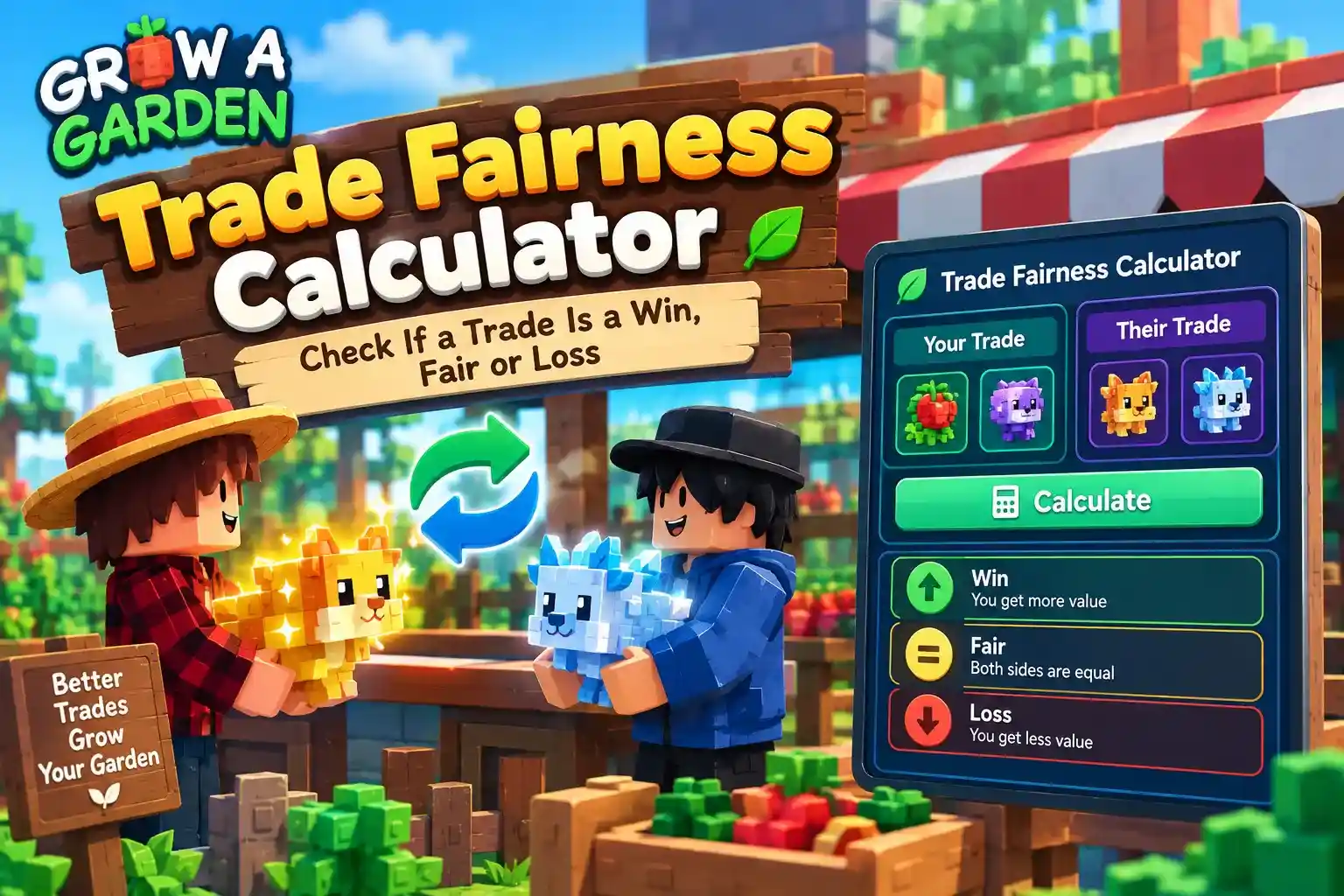
This Grow a Garden trade fairness calculator guide shows how to add both sides of a trade, read the totals, and judge the result as a win, fair or lose (WFL) with a simple community rule. You can check any trade with the free Grow a Garden calculator as you read.
How the Grow a Garden Trade Fairness Calculator Works
The trade calculator turns both sides of a deal into token totals, so you can see who is ahead before you accept. It lives on the value list page, and it works for pets only.
What It Checks
You fill up to 12 slots on each side, and the tool adds everything up.
Scroll sideways to see more columns when needed.
Part | What it does |
Slots | 12 on the left side and 12 on the right side |
Items | Pets only, each with its own weight and mutation |
Totals | Left side total and right side total, in tokens |
Difference | The left total minus the right total, shown with a plus or minus sign |
Label | "Equal trade", "Left side ahead" or "Right side ahead" |
The tool shows no percentage and no win, fair or lose verdict, so you judge the gap yourself
There is no "close trade" band: even a gap of 10 tokens on a 65,000 total still reads "Left side ahead"
Crops, seeds and gear can't be added, so the tool compares pets only
How Token Value Is Built
Pet trades are counted in tokens, not Sheckles. A pet's token value is its value at its weight, plus a flat amount for its mutation.
Scroll sideways to see more columns when needed.
Mutation | Tokens added |
None | +0 |
Nightmare | +30 |
Venom | +40 |
Hyperhunger | +40 |
Rainbow | +250 |
Giant Golem | +1,000 |
Ascended | +1,000 |
An Owl at weight 1 is worth 10 tokens, and with Rainbow it is worth 260
Mutations add a flat amount and don't multiply, which is different from the crop mutation multipliers
On some pets, weight can outweigh any mutation, so check the weight before the mutation
Token values change, so check the update date shown on the value list page
How to Use the Trade Calculator Step by Step
Using the Grow a Garden trade fairness calculator takes three steps: add the pets, set each weight and mutation, and read the totals. The tool is free, runs in your browser, and needs no login.
Add Pets to Both Sides
Put what you give on the left and what you get on the right. Then work through the slots one at a time.
Open the Trade Value Calculator on the value list page
Click a + slot to open the pet list, then pick the pet
Fill every pet on both sides before you read the result
Use the Clear button on a side to start that side over, and it clears only that side
For crop trades, use the plant calculator instead. Our crop value calculator guide shows how to price crops, and the Copy for Trading button shares the result.
Enter Weight and Mutation
After you pick a pet, set its weight and mutation. These two settings change the token value more than anything else.
Scroll sideways to see more columns when needed.
Setting | What to enter |
Weight mode | Choose Value scale (1 to 11.4) or Actual weight (10 to 114 kg) before you type |
Weight | The weight of the real pet, in the mode you chose |
Mutation | One from the list, such as None, Rainbow or Ascended |
Match the weight and mutation to the real pet in the trade window
In the pet panel on the value list, a number up to 11.4 is read as scale weight, and a larger number is read as kilograms
That means typing 11 reads as 11 on the scale, which is 110 kg, so pick the right mode when you mean kilograms
Not sure which scale to use? Our weight formula guide explains how 1 to 11.4 matches 10 to 114 kg
A wrong weight is the most common reason a trade looks fair when it isn't
Read the Totals
The tool shows a total for each side, the difference between them, and a label.
Scroll sideways to see more columns when needed.
Label | What it means |
Equal trade | Both totals match |
Left side ahead | The left total is higher |
Right side ahead | The right total is higher |
The difference is always the left total minus the right total
A plus sign means the left side is higher, and a minus sign means the right side is higher
With what you give on the left, a minus sign means you get more than you give
The label doesn't say whether the gap is big or small, so use the WFL rule in the next section
WFL Explained: Win, Fair or Lose
WFL stands for win, fair or lose, and it is the quickest way players judge a trade. The calculator doesn't show a WFL verdict, so this section shows how to check WFL with the trade totals.
What WFL Means
WFL is a community rule, not a game feature. It turns the gap between two sides into one verdict, so you don't have to judge a trade by feel.
Win: you get more value than you give
Fair: both sides are close to equal
Lose: you give more value than you get
You don't need a separate WFL calculator or WFL checker. The totals from the trade calculator and one formula give you the same answer.
The Trade Swing Formula
Put what you give on the left and what you get on the right. Then use the two totals the tool shows.
Trade swing = (what you get − what you give) ÷ average of both sides × 100
For example, say you give 200 tokens and get 260. The average is 230, so the swing is 60 ÷ 230 × 100 = 26 percent. That is a big win.
Scroll sideways to see more columns when needed.
Verdict | Trade swing | What it means |
Big Win | Above +20% | A great deal for you |
Win | Above +10%, up to +20% | A good profit |
Fair | −10% to +10% | Balanced |
Lose | Below −10%, down to −20% | A bad deal |
Big Lose | Below −20% | A terrible trade |
This is a community rule of thumb. It is not an official rule, and some players use ±5% for fair.
A tool label of "ahead" can still be a fair trade if the swing is within 10 percent
Use the swing, not the label, to decide
Always compare the totals on the same date's values
What to Do With Each Verdict
Your verdict tells you what to do next.
Scroll sideways to see more columns when needed.
Verdict | What to do |
Big Win | Accept |
Win | Accept |
Fair | Your choice, based on what you need |
Lose | Ask for more value, or add items |
Big Lose | Decline |
The difference in tokens is exactly how much you need to ask for to make a trade equal
Add one more pet to your side of the request, then recheck the totals
If the other player refuses to add anything, you can leave the trade
Trade Examples With Real Numbers
These examples use pets at weight 1 with no mutation, plus one Dragonfly test at two weights. The values come from the value list dated 8/1/2026 and may have changed since. In every example, you give the pets on the left and get the pets on the right.
A Fair Trade
Two small trades with different labels from the tool. Both turn out fair once you check the swing.
Scroll sideways to see more columns when needed.
You give | You get | Tool label | Difference | Swing | Verdict |
Owl (10) | Dog + Cat (10) | Equal trade | +0 | 0% | Fair |
Owl + Hyena (14) | Dog + Cat + Bunny (15) | Right side ahead | −1 | +6.9% | Fair |
The second swing is (15 − 14) ÷ 14.5 × 100 = 6.9%
The tool says "Right side ahead", but a 1 token gap is well inside the fair band
Use the swing to decide, not the label
A Trade That Looks Fair but Isn't
Weight can hide a huge gap. Both pets here are a Dragonfly, but the weights are far apart.
Scroll sideways to see more columns when needed.
You give | You get | Tool label | Difference | Swing | Verdict |
Dragonfly, weight 11.4 (65,000) | Dragonfly, weight 1 (10) | Left side ahead | +64,990 | About −200% | Big Lose |
Weight 11.4 is 114 kg, and weight 1 is 10 kg
The same pet is worth 10 tokens at one weight and 65,000 at another
"A Dragonfly for a Dragonfly" sounds even, so always check the weight first
A Clear Win
Small pets can still win when the numbers line up in your favor.
Scroll sideways to see more columns when needed.
You give | You get | Tool label | Difference | Swing | Verdict |
Owl + Robin (12) | Dog + Cat + Bunny (15) | Right side ahead | −3 | +22.2% | Big Win |
The swing is (15 − 12) ÷ 13.5 × 100 = 22.2%
A swing above 20 percent is a Big Win under the community rule
Accept it, and recheck the pets' weights and mutations in the trade window first
Common Trade Scams and How to Avoid Them
Many bad trades come from one missed check, not from clever tricks. Three checks catch most of them, and the calculator helps with each one.
Hidden Weight Swaps
Weight can swing a pet's value by thousands of tokens, so it is the easiest thing to hide. The pet's name tells you nothing about its weight.
Scroll sideways to see more columns when needed.
What you hear | What to check |
"Same pet, even swap" | The weight on both sides |
"It's a 5" | Whether that is value-scale weight or kilograms, since 5 on the scale is 50 kg |
"It's 11.4" | Whether that is the scale number or a kilogram weight, since 11.4 on the scale is 114 kg |
"It's an 11" | The weight mode, since the pet panel reads 11 as scale weight, which is 110 kg |
Ask to see the weight in the trade window before you agree
Enter the exact weight in the calculator, not a guess
If the other player won't show the weight, decline the trade
Mutation Add-On Swaps
Mutations add flat tokens, and some add a lot. Rainbow adds 250, and Giant Golem and Ascended add 1,000 each. On a low-value pet, the mutation can be worth far more than the pet itself.
Scroll sideways to see more columns when needed.
Pet | Mutation | Tokens |
Owl at weight 1 | None | 10 |
Owl at weight 1 | Rainbow | 260 |
A plain Owl and a Rainbow Owl look the same in a quick message
On a heavy pet the same Rainbow adds little, since 250 tokens barely moves a 65,000 token pet
Check the mutation on every pet, on both sides
Select the mutation in the calculator, and compare the totals again
Rushed and Lopsided Offers
Pressure is a tool too. A player who rushes you wants you to skip the checks above.
Never accept before you have run both totals and the swing
Be careful if the offer changes after you agree, such as "I'll add more later"
Look twice at a trade that is a huge win for you, since a wrong weight or mutation is often behind it
Check the update date on the value list page, because old values can make a trade look better than it is
If the swing says Lose, ask for the token difference in extra pets, or decline
Grow a Garden Trade Questions Answered
What is the Grow a Garden trade fairness calculator?
It is a free tool on the value list page that adds up both sides of a pet trade in tokens. It shows each total, the difference, and which side is ahead.
What does WFL mean in Grow a Garden?
WFL means win, fair or lose, a community rule for judging a trade by how much value you gain or lose. The calculator doesn't show a WFL verdict, so you work it out from the totals.
How do I check if a trade is fair in Grow a Garden?
Add every pet on both sides with its weight and mutation, then read the totals. Use the trade swing formula on those totals, and treat a swing within 10 percent as fair.
What percentage makes a trade fair?
The common community rule is a swing between −10% and +10%. Some players use a tighter ±5%, so check what your trading partner expects.
Can I add crops to the trade calculator?
No, the trade calculator takes pets only. To price crops, use the plant calculator and its Copy for Trading button.
How do I enter the right weight in the trade calculator?
Pick the weight mode first: Value scale (1 to 11.4) or Actual weight (10 to 114 kg). In the pet panel, a number up to 11.4 reads as scale weight and a larger number reads as kilograms.
How accurate are the trade values?
Token values are published estimates, and they change as the game does. Check the update date on the value list page before you trust a total.
Trade With Numbers, Not Guesses
A fair trade comes down to three checks: the right weight, the right mutation, and the swing between the totals. The Grow a Garden trade fairness calculator handles the totals, and the WFL rule tells you what to do next.
Before you accept your next trade, add both sides on the value list page and run the swing. If you are unsure about a pet's weight, check it with the pet weight tool on our homepage.